

Using the Panel
The panel has a header with the floor tabs, a controls row with the tools, and a canvas. It is for administrators only.
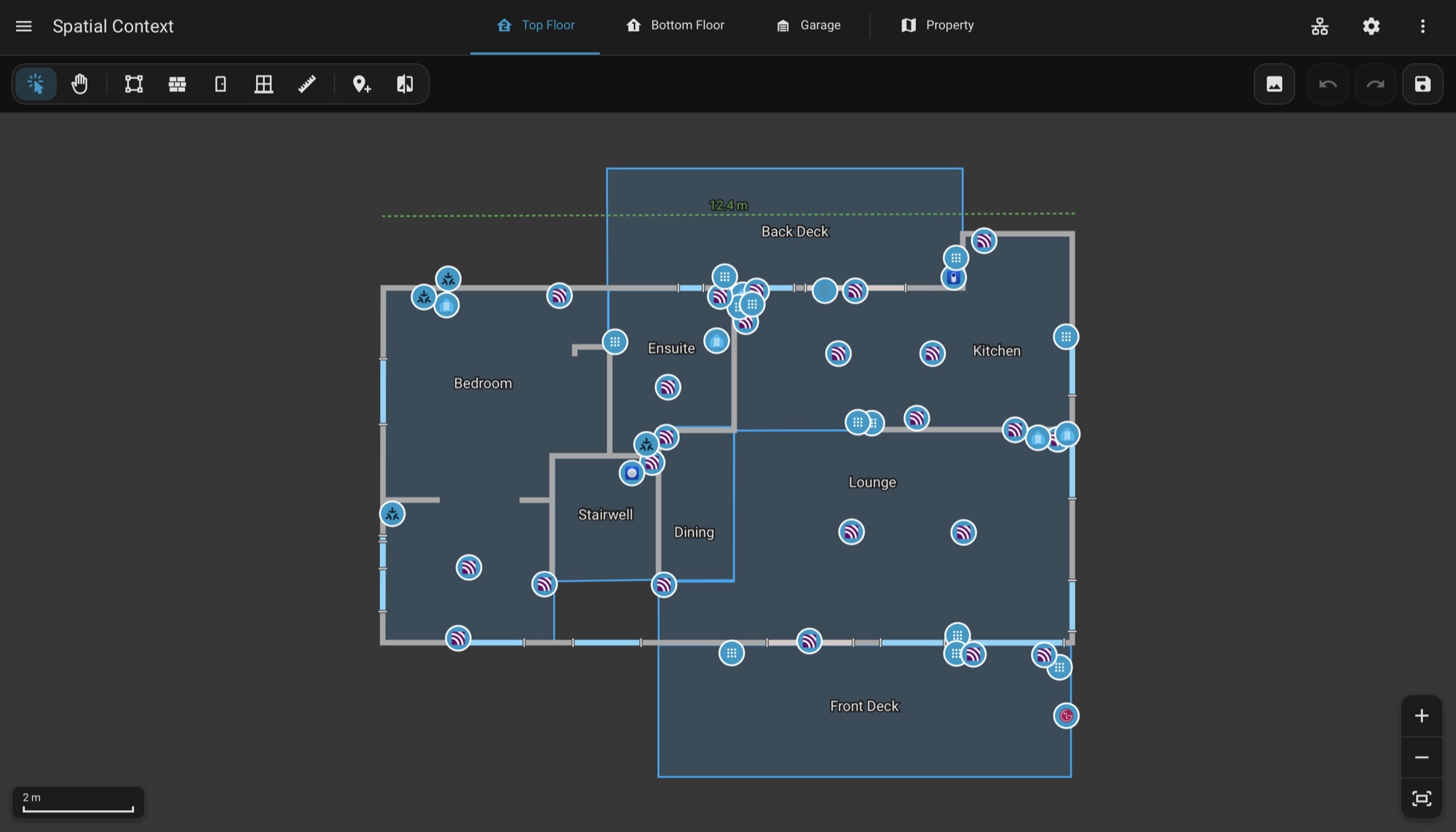
Header
The floor tabs and the Property tab are in the middle. On the right are the Connectivity Map button, Settings and the ⋮ menu.
| ⋮ Menu Item | Action |
|---|---|
| Getting Started Guide | Opens Your First Floor Plan in a new tab. |
| Export JSON | Downloads the layout as map data. |
| Download Debug Report | Downloads versions, settings, layout counts and the recent debug log. |
| Reset Floor | Clears every room, wall, opening, placed device and the background image of the open floor. Asks first. |
Controls Row
| Part | Contents |
|---|---|
| Left | The tools. |
| Middle | Hints and options for the active tool, such as the Snap menu. |
| Right | Background, undo, redo and save. |
Tools
| Tool | Action |
|---|---|
| Select | Selects a room, wall, door, window or device. Handles reshape it. A device is dragged to move it. Dragging inside a selected room moves the room with its devices. |
| Pan | Moves the view only. A trackpad's two-finger scroll also pans in every mode. A mouse wheel zooms, and so does Ctrl+scroll. |
| Trace Room | Click each corner, then click near the start to close the outline. |
| Trace Wall | Click along the wall. Finish Wall or Enter ends an open run. Clicking the start closes a loop. |
| Add Door, Add Window | Click a point on a traced wall. |
| Set Scale | Click two points a known distance apart and enter the distance. Can be repeated at any time. |
| Place Device | Opens the device picker. See Placing Devices. |
| Align Floors | Overlays another floor to line the two up, then applies the transform. |
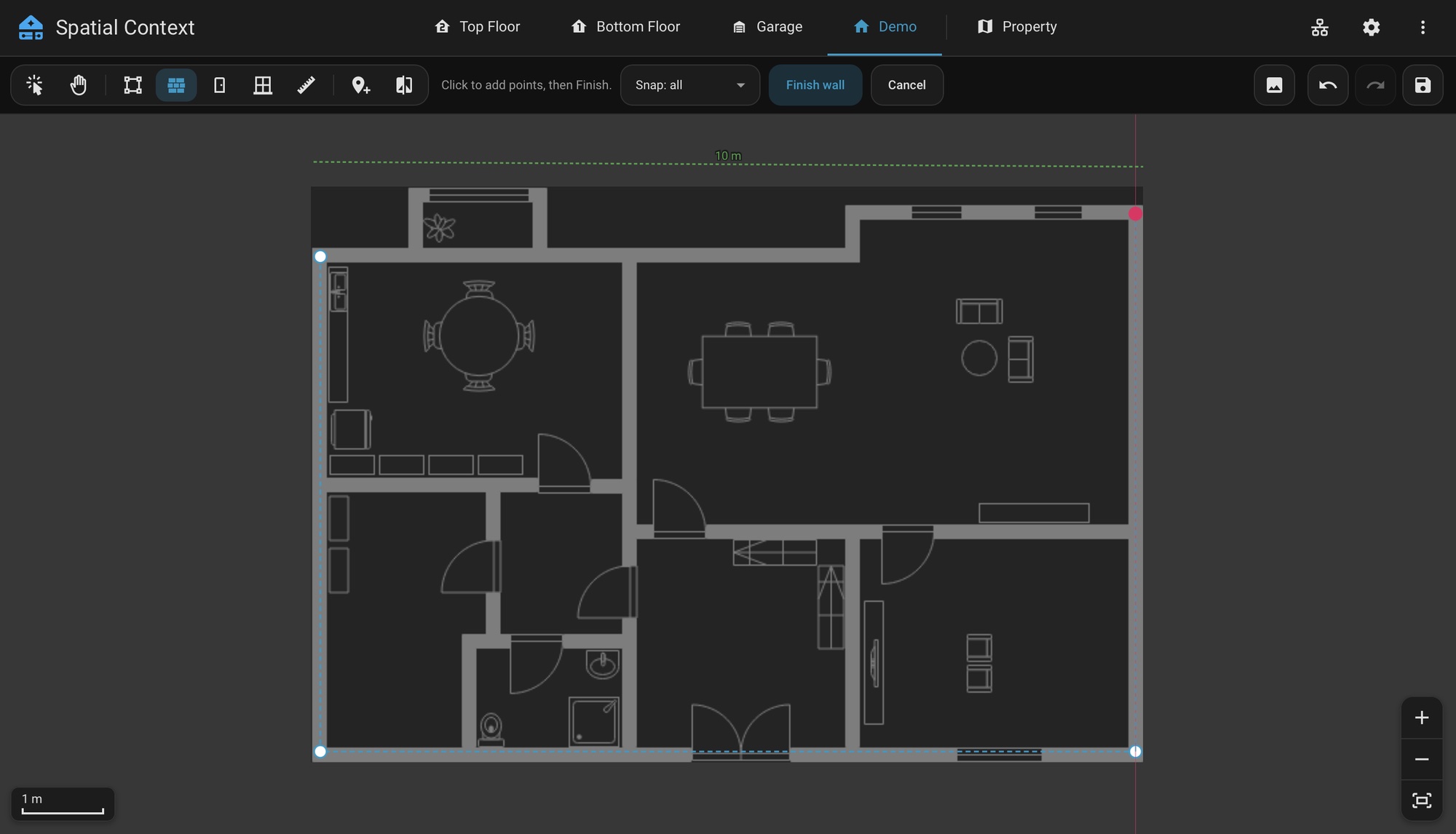
New points snap to nearby walls and room edges and line up with the previous point. The Snap menu sets the target: all, walls only, rooms only, or off. Shift places one point without snapping.
WARNING
Applying an alignment rewrites every room, wall, opening and device position on the aligned floor, and cannot be undone. The panel asks before applying.
Info Cards
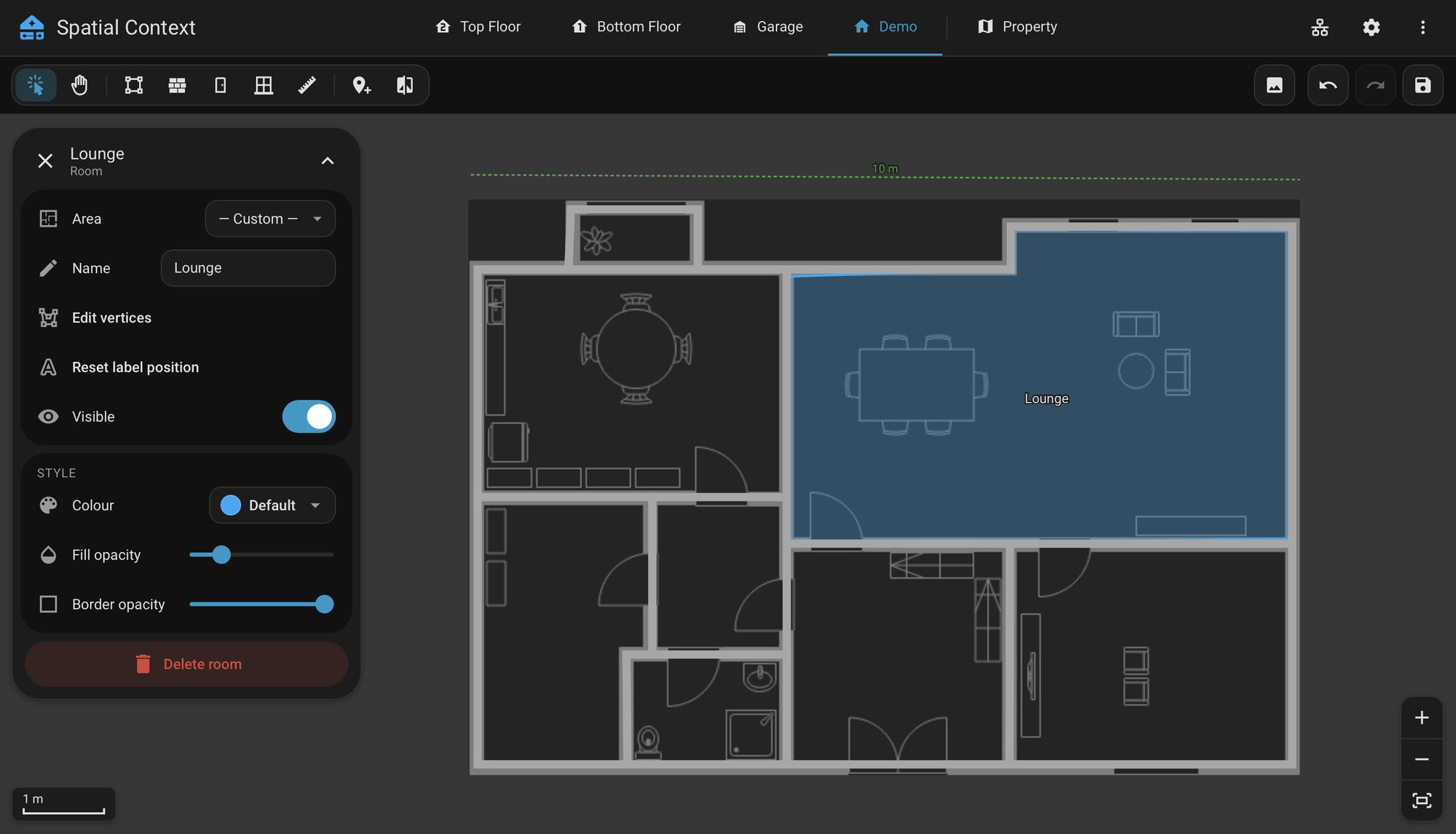
Selecting an item on the plan opens an info card on the left.
| Selection | Settings |
|---|---|
| Room | Home Assistant area (including areas on no floor), name (Use area name resets it to the area's current name), corners, label position, visibility, colour, Fill Opacity and Border Opacity. |
| Device | Label, icon (any Material Design icon), mounting height, and its network links while a layer is on. |
| Wall | Material, thickness and corners. |
| Door or Window | Width. |
| Connectivity Link | Both ends and the signal quality. A link to another floor can jump to that floor. |
| Devices on One Spot | Choose which device to select, or remove one from the spot. |
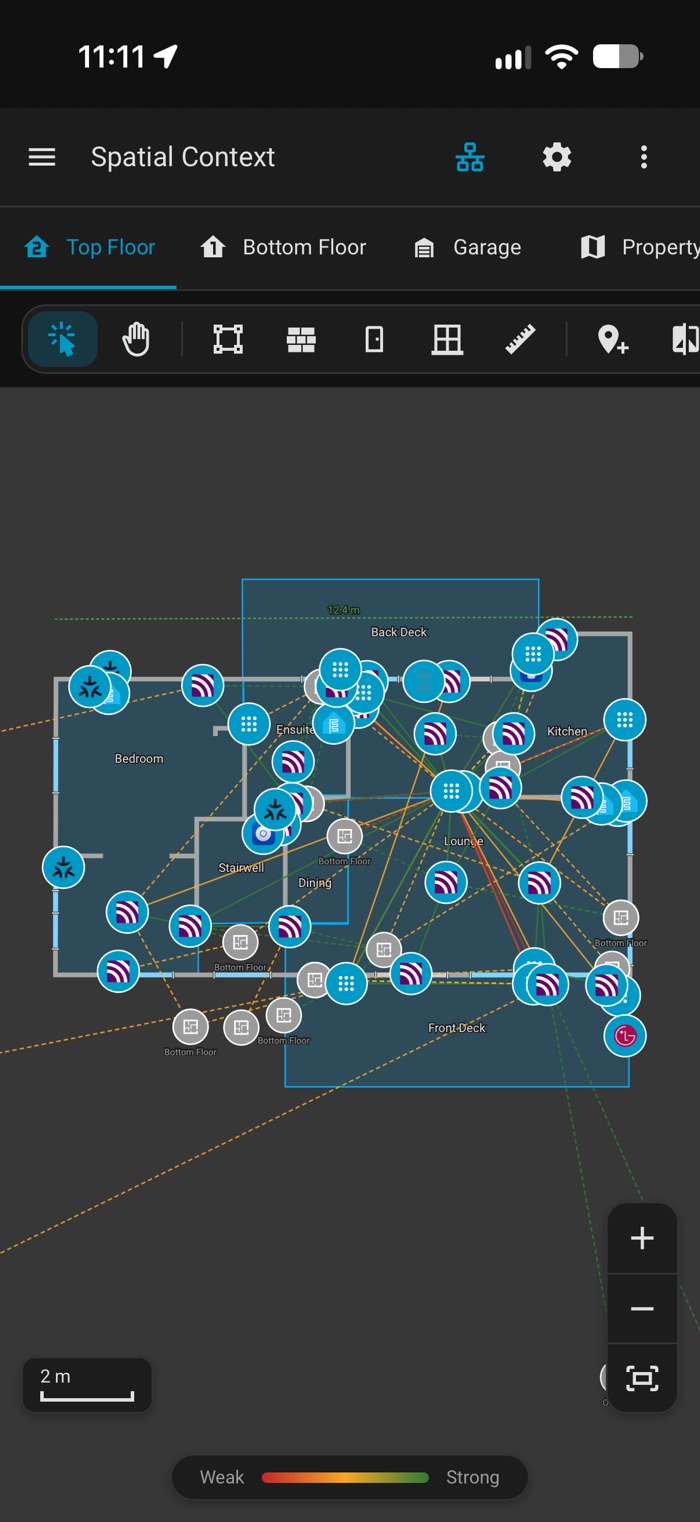
Phones
The info card spans the width and folds down to a header with the chevron at its top right. The controls row scrolls sideways. The device picker opens as a sheet.
Language
The panel follows the language of the Home Assistant user profile. English and German are included. The German translation is machine-drafted and has not been reviewed by a native speaker. Corrections are welcome as an issue or a pull request against frontend/src/translations/de.json. Untranslated strings fall back to English.
Keyboard
| Key | Action |
|---|---|
| Esc | Cancels the current trace or armed placement. During a drag, puts the item back. |
| Ctrl/Cmd+Z, Ctrl/Cmd+Shift+Z (or Ctrl+Y) | Undo and redo for the open floor and the Property tab. A drag is one step. |
| Backspace or Ctrl/Cmd+Z while tracing | Removes the last point. |
| Delete, Backspace | Deletes the selection, after asking. |
| Enter | Finishes a wall trace. |
| Shift | Places or drags a point without snapping. |
Shortcuts do not fire while a field has focus.