

The Property Tab
The Property tab is a whole-site view where each building and each outdoor device is placed on a site photo, a map, or both.
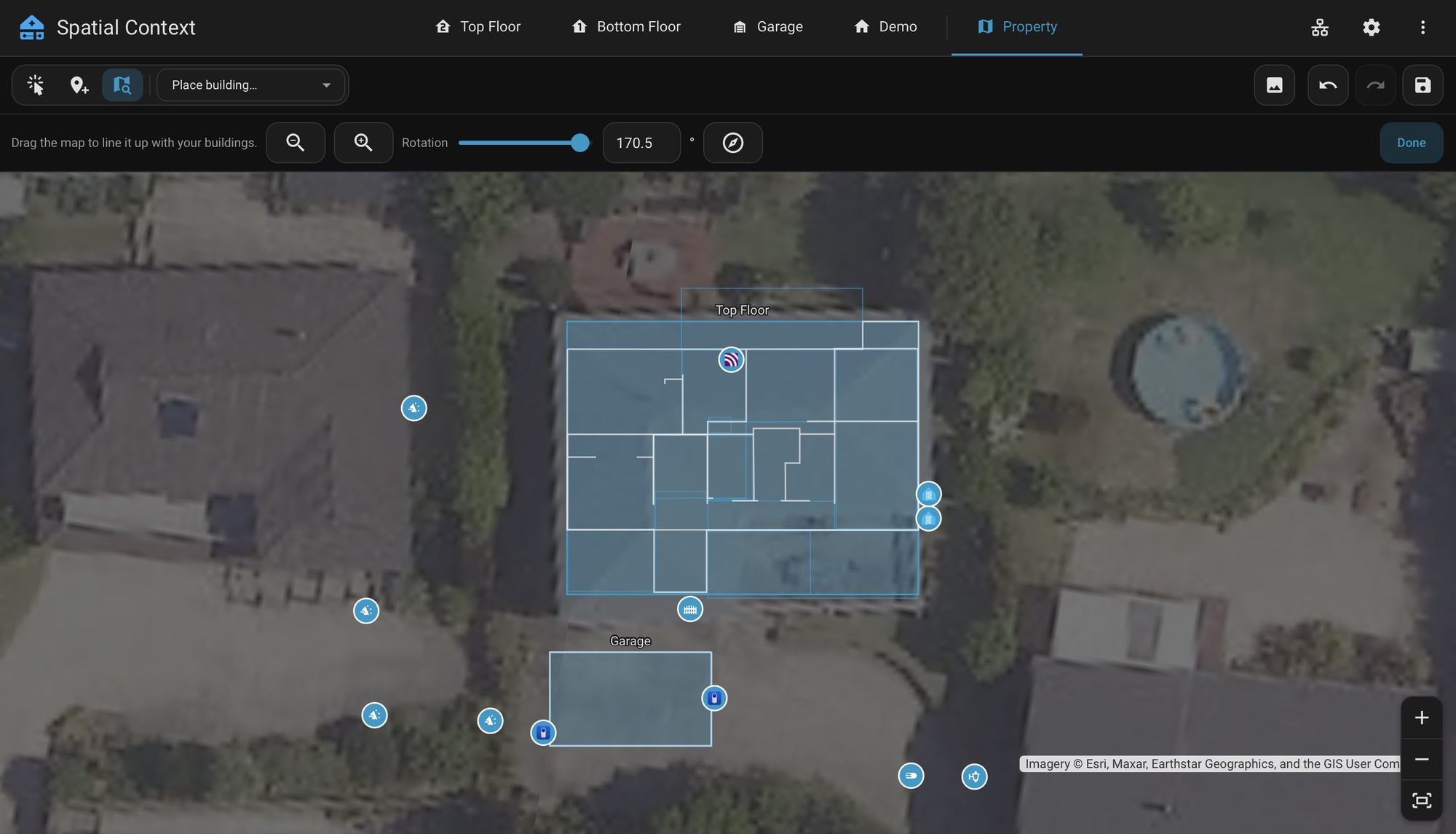
A building is one placement. Floors linked with Align Floors share a single placement, so a multi-storey house is one shape. A floor never aligned to another, such as a detached garage, has its own.
Map Background
Background → Add Map Background puts a live map behind the placements, centred on the Home Assistant home location. It requires Home Assistant 2026.10 or newer. See Requirements by Feature.
| Setting | Options |
|---|---|
| Map Type | Street Map: drawn from Home Assistant's map tile service, with no key and no third-party request. Aerial Photo (Esri): easier for placing a house on its roof. |
| Map Opacity | Fades the map. An uploaded image still draws on top of the map. |
WARNING
Aerial tiles are loaded by the browser directly from Esri's servers. Esri receives the IP address and the area being viewed. The street map makes no third-party request.
Move Map
Move Map keeps the buildings in place and moves the map under them, to line a footprint up with the real roof. A third bar holds the controls.
| Input | Action |
|---|---|
| Drag | Moves the map. |
| Mouse wheel, Ctrl+scroll, or the zoom buttons | Zooms. |
| Shift+scroll, or the slider | Rotates. North Up resets the rotation. |
| Pinch and twist | Zooms and rotates on a touch screen. |
The map position is saved with the layout and its moves can be undone.
Placing Buildings
- Choose a building from the Place Building dropdown in the controls row.
- Click the photo or map to drop it.
Each placed building shows its traced rooms and walls as a faint outline inside its rectangle. When the property has a scale, a new building is sized from its traced footprint and the floor's calibration. Otherwise it is given a default size.
A selected placement can be dragged. A corner drag resizes it with the building's proportions locked. The handle above it rotates it.
Scale
The Property tab has no calibration of its own. Once a placed building has a floor with Set Scale done, the tab derives its scale from that building's size on the photo. Outdoor devices then get real-world positions in the export. If placed buildings give different scales, a notice says so. This usually means one building is sized wrongly against the photo.
Outdoor Devices
- Select the Place tool.
- In the picker, choose Outdoor / No Floor.
- Select a device, then click the plan.
Placing a device outdoors removes it from any floor, and the reverse.
A Home Assistant area on no floor, such as a deck, can be drawn onto a floor. Select it under Outdoor / No Floor in a room's area list.
Reset Property clears every building placement, every outdoor device and the background photo.