

Connectivity Map
The Connectivity Map draws the network links between placed devices on the plan, coloured from weak to strong.
The network button in the header opens the layers. A layer stays on after the menu closes, and the button is highlighted while one is showing. Selecting the layer again turns it off. A key sits along the bottom of the canvas.
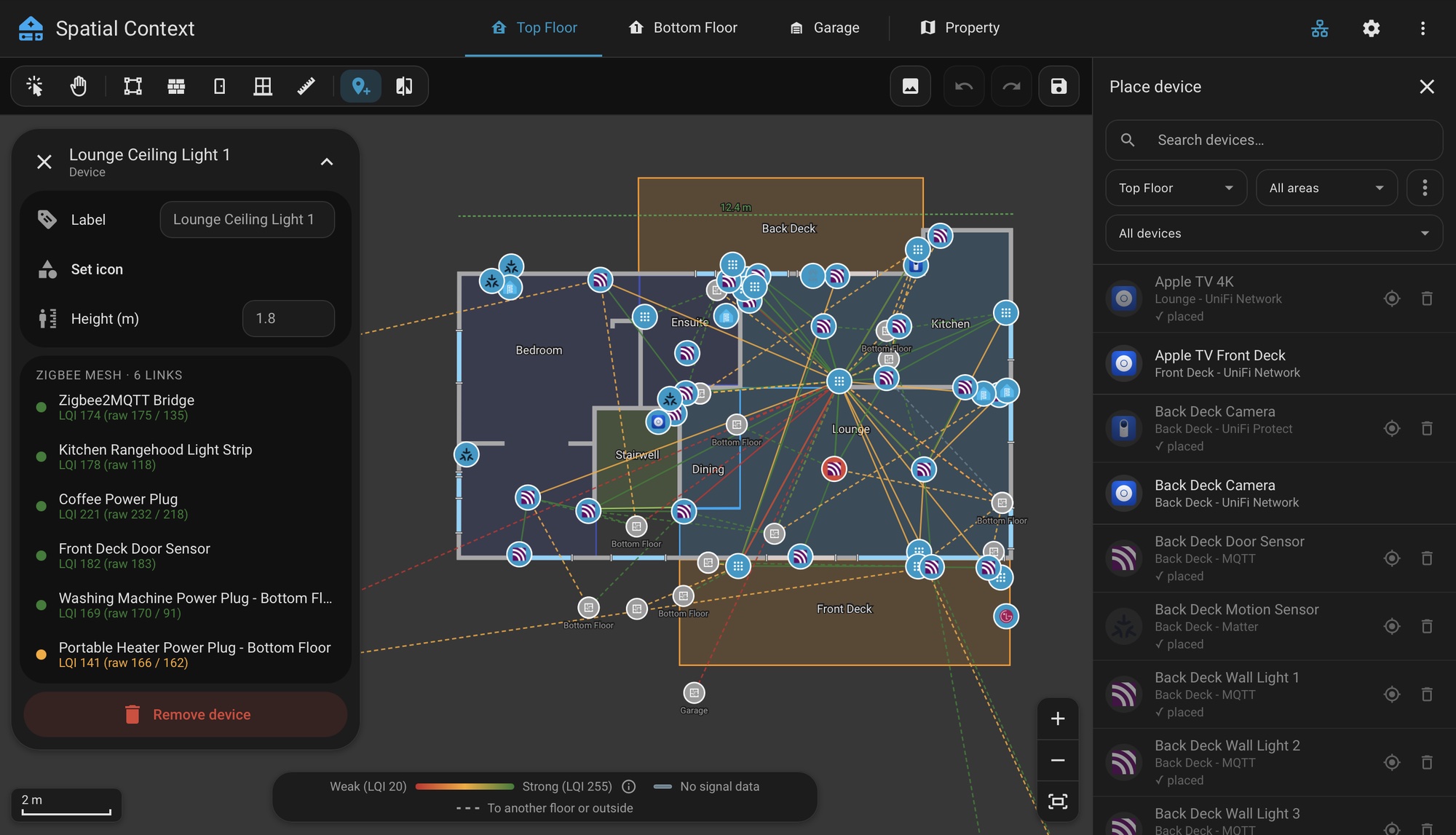
Selecting a device lists its links in its info card, strongest first. Selecting a line shows that link's details. Each layer has its own requirements. See Requirements by Feature.
Reading the Lines
Colour shows signal quality. The key along the bottom of the canvas runs from weak (red) through medium (amber) to strong (green). The two ends show the weakest and strongest readings currently drawn, for example "Weak (LQI 55)" and "Strong (LQI 145)". Hover over the key, or tap it on a phone, to see how the layer you have picked is graded, and move along the bar to read the value at that point and whether it counts as weak, medium or strong. Each network is graded on its own scale:
| Layer | Strong | Medium | Weak |
|---|---|---|---|
| Zigbee | LQI 150 or more | LQI 80 to 149 | LQI below 80 |
| Wi-Fi | −50 dBm or better | −70 to −51 dBm | weaker than −70 dBm |
| Bluetooth | −70 dBm or better | −85 to −71 dBm | weaker than −85 dBm |
| Matter | Rated by Home Assistant | Rated by Home Assistant | Rated by Home Assistant |
Solid lines join two devices placed on the floor you are viewing.
Dashed lines go to a device somewhere else: on another floor, or outdoors. They end in a marker that jumps to that floor. On the Property tab, a dashed line is one that ends at a device inside a building. The key shows an entry for dashed lines only while some are on screen.
Grey lines are links with no signal reading, such as a Wi-Fi client that does not report one, or a Zigbee route that neither device has measured. The key shows a grey entry only when there are any.
Zigbee Mesh
The Zigbee layer uses Zigbee2MQTT's network scan or ZHA's topology. ZHA support is newer and has had less testing on real networks, so please report what it shows. A scan takes one to two minutes, so the last result is cached. The layer shows the cached scan, and Refresh Mesh runs a new one. Load Mesh appears when there is no cached scan yet. The cache is held in memory, so it is empty again after Home Assistant restarts, until the next Load Mesh or Refresh Mesh.
By default the layer draws:
- each device's strongest link, on its own floor and to other floors,
- every parent and child route,
- the coordinator's direct links with an LQI of 50 or more.
Show All Links draws the full neighbour table, as Zigbee2MQTT's own map does.
Zigbee2MQTT and ZHA list some neighbours with a stale reading of 0 or 1. Those are ignored, so a link is graded on its real reading, and shows grey if it has none.
LQI differs between chipsets. Some Hue bulbs report close to 255 for every link, and TI coordinators read low. Each device's readings are corrected for its own scale, worked out from how it and its neighbours rate the same links, and a link is graded on its weaker side. The link details show the corrected and the raw values, and the key at the bottom of the canvas uses the corrected ones, so its ends can differ from the raw numbers in Zigbee2MQTT.
An overnight automation keeps the cache current.
Wi-Fi Network
Links each client to its access point, with signal strength where available. Supported sources are UniFi Network (including clients whose tracker entity is disabled), TP-Link Omada and the custom TP-Link Deco integration.
Matter Network
Shows the Matter network topology from Home Assistant. It updates live. The Border Router setting names the device placed for the Thread border router so that its links are drawn. See Settings.
Bluetooth
Links each Bluetooth LE device registered in Home Assistant to the scanner or ESPHome proxy that hears it best, graded by RSSI. It updates live from the same data as Settings → Bluetooth → Visualization. The ESPHome device of each proxy and the BLE devices must be placed for the lines to show.
Links Across Floors and Outdoors
A link to a device on another floor is a dashed line toward that device's real position, ending in a marker that jumps to that floor. Separate buildings use their Property tab placements for direction. Links to outdoor devices work the same way and are labelled Outside.