

Your First Floor Plan
This walkthrough builds one floor: a background image, a scale, rooms, walls and a placed device.
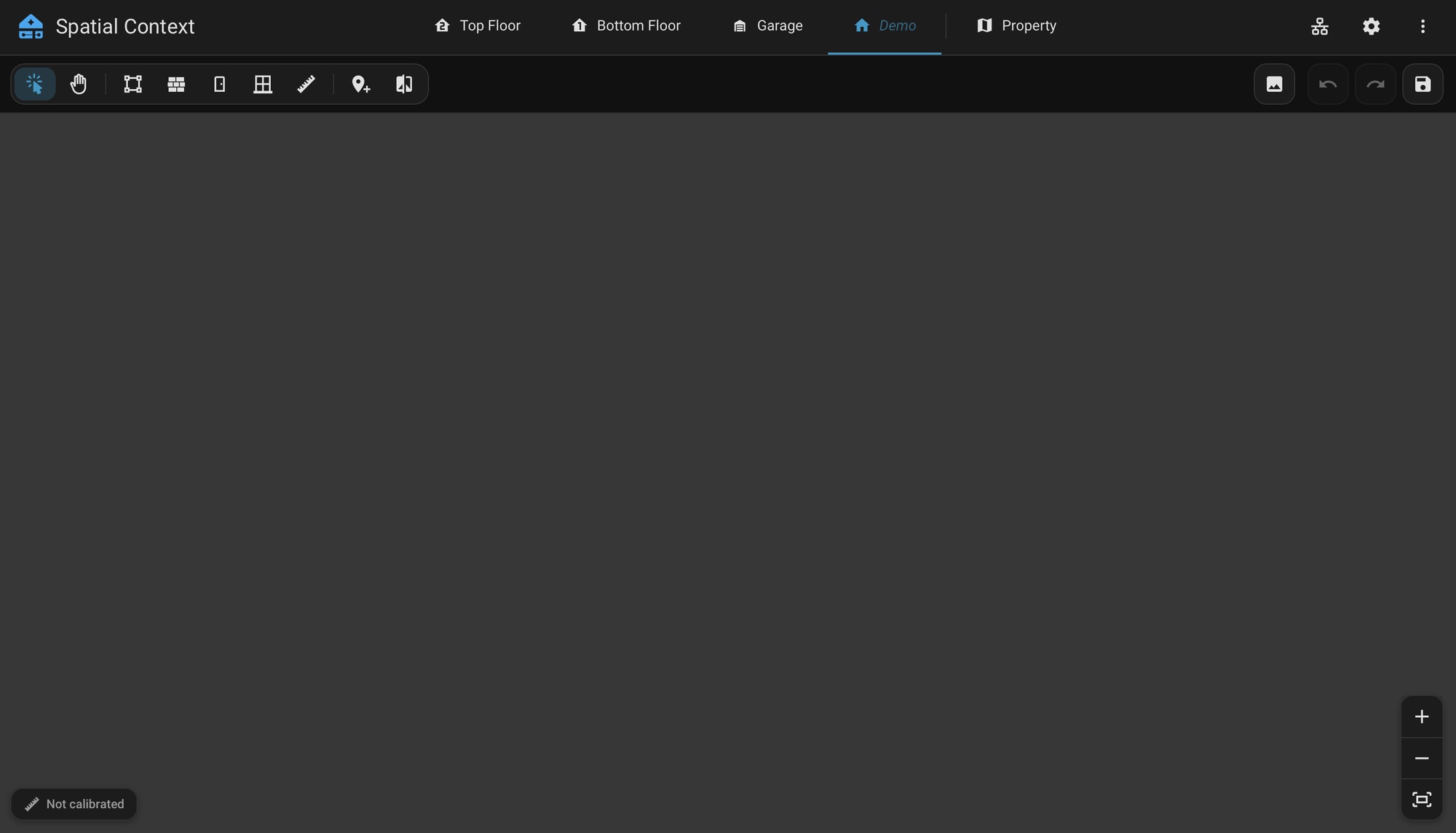
Prepare an image of the floor plan as a PNG, JPEG or GIF. Crop it close to the plan and keep it straight on, so the walls run square to the edges. If the plan is a PDF, save it as an image first:
- Mac: open the PDF in Preview, then select File → Export and set the format to PNG or JPEG.
- Windows: open the PDF, capture the page with the Snipping Tool and save it as a PNG.
- Any computer: use a free online PDF to PNG converter, or take a clear screenshot or photo of the plan.
Command line
pdftoppm is part of Poppler. Install it with brew install poppler on a Mac, or sudo apt install poppler-utils on Debian and Ubuntu. It converts each page of a PDF to a PNG at 150 dpi:
pdftoppm -png -r 150 your-floor-plan.pdf your-floor-plan1. Add the Background
- Open Spatial Context and select a floor tab.
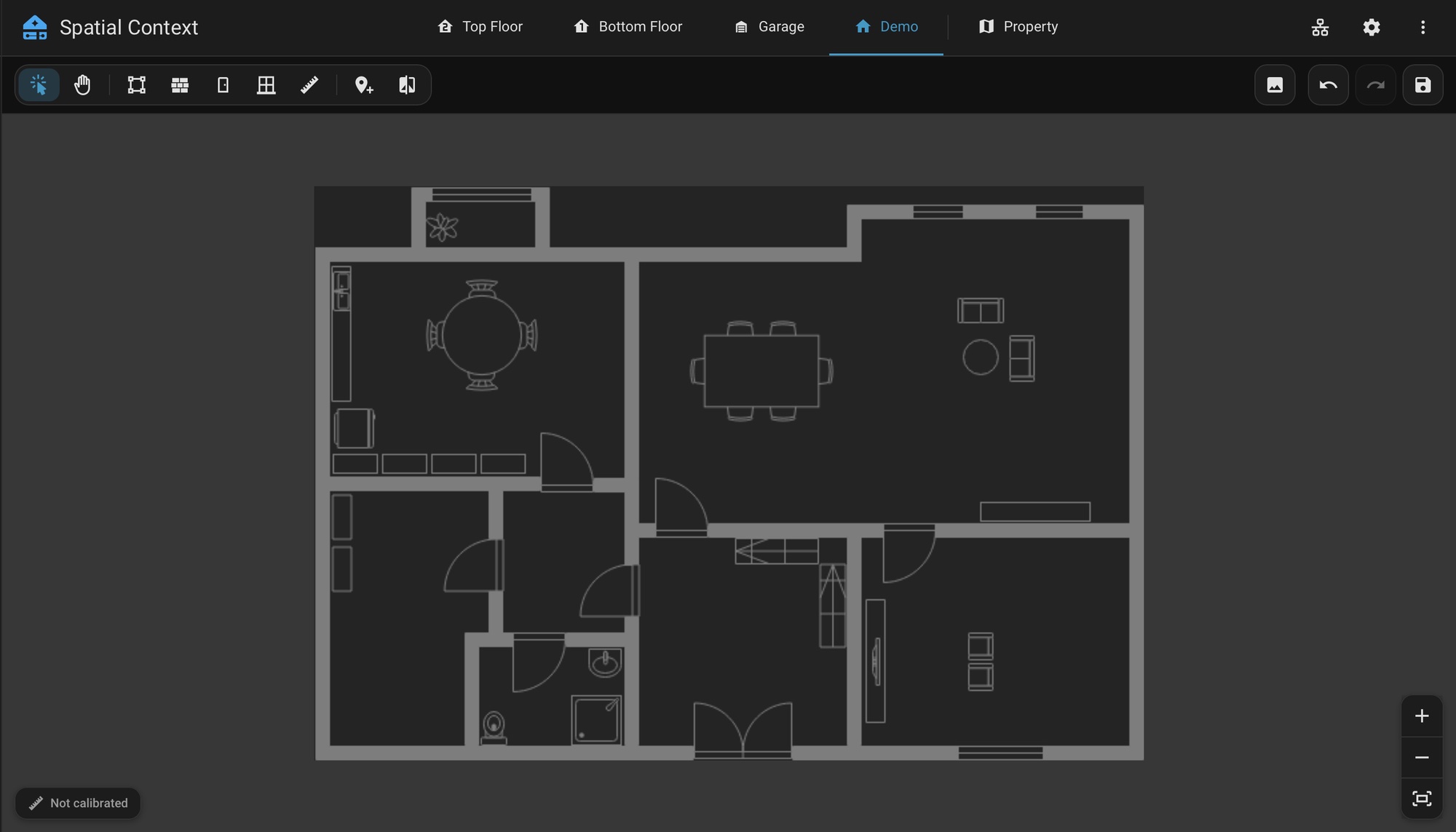
- Select Background and upload the image, or drag the file onto the canvas.
2. Set the Scale
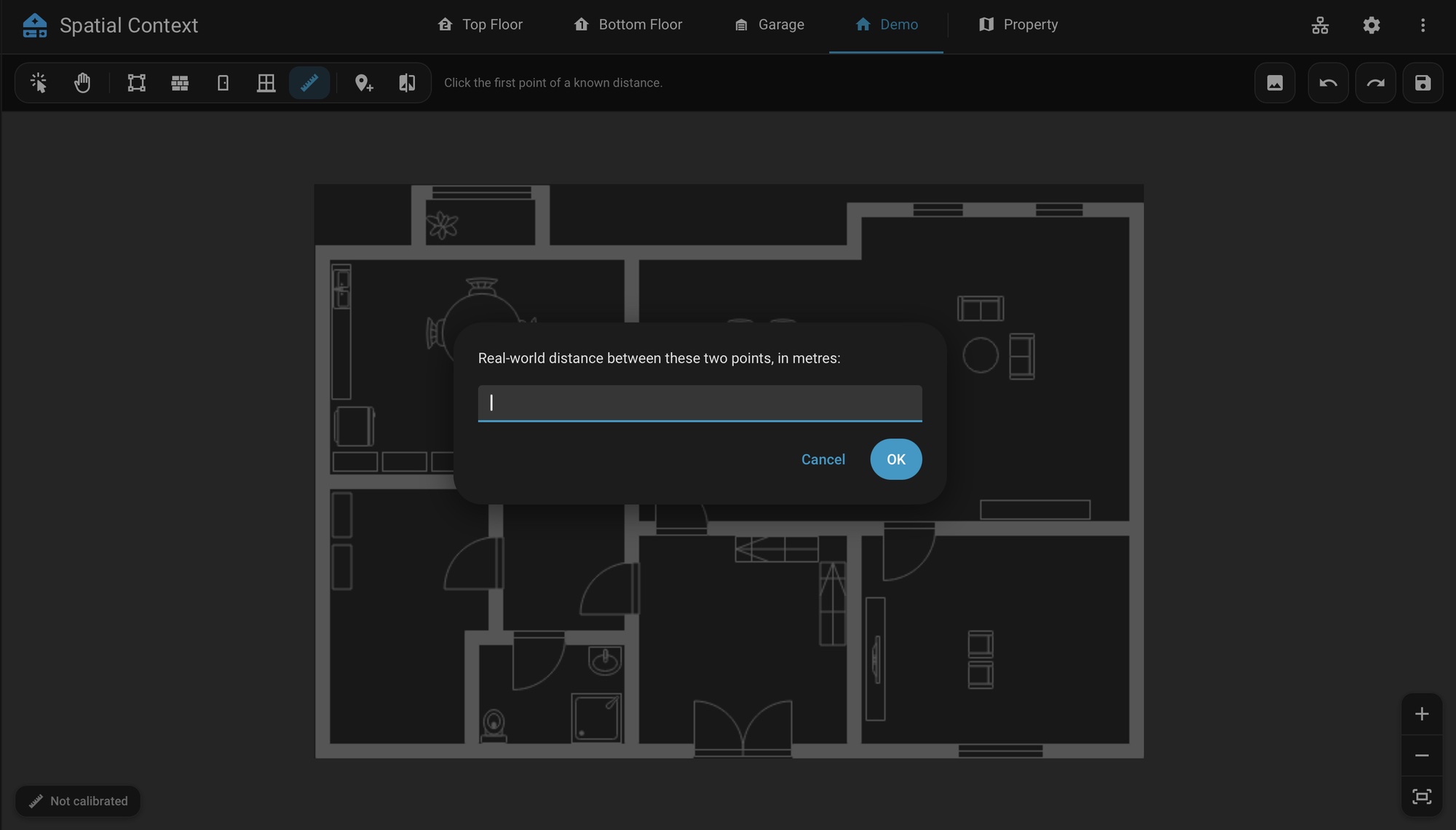
- Select Set Scale.
- Click two points a known distance apart.
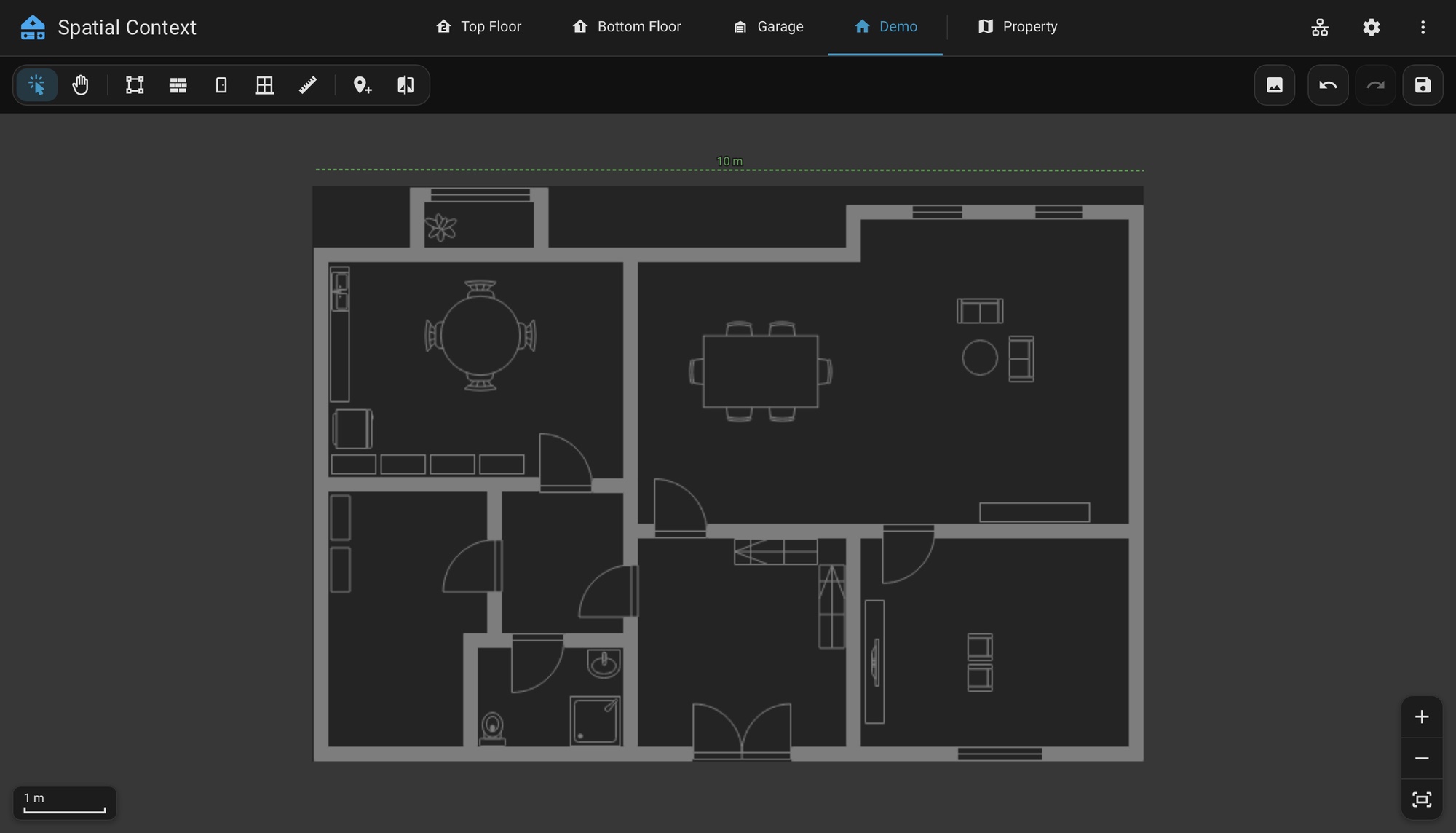
- Enter the distance, in metres or feet to match the Units setting.
WARNING
Set the scale before anything else. Positions, distances and wall lengths are only given in real units on a calibrated floor. An uncalibrated floor shows Not calibrated in place of the scale bar, and the export leaves every value in metres empty.
3. Trace Rooms and Walls
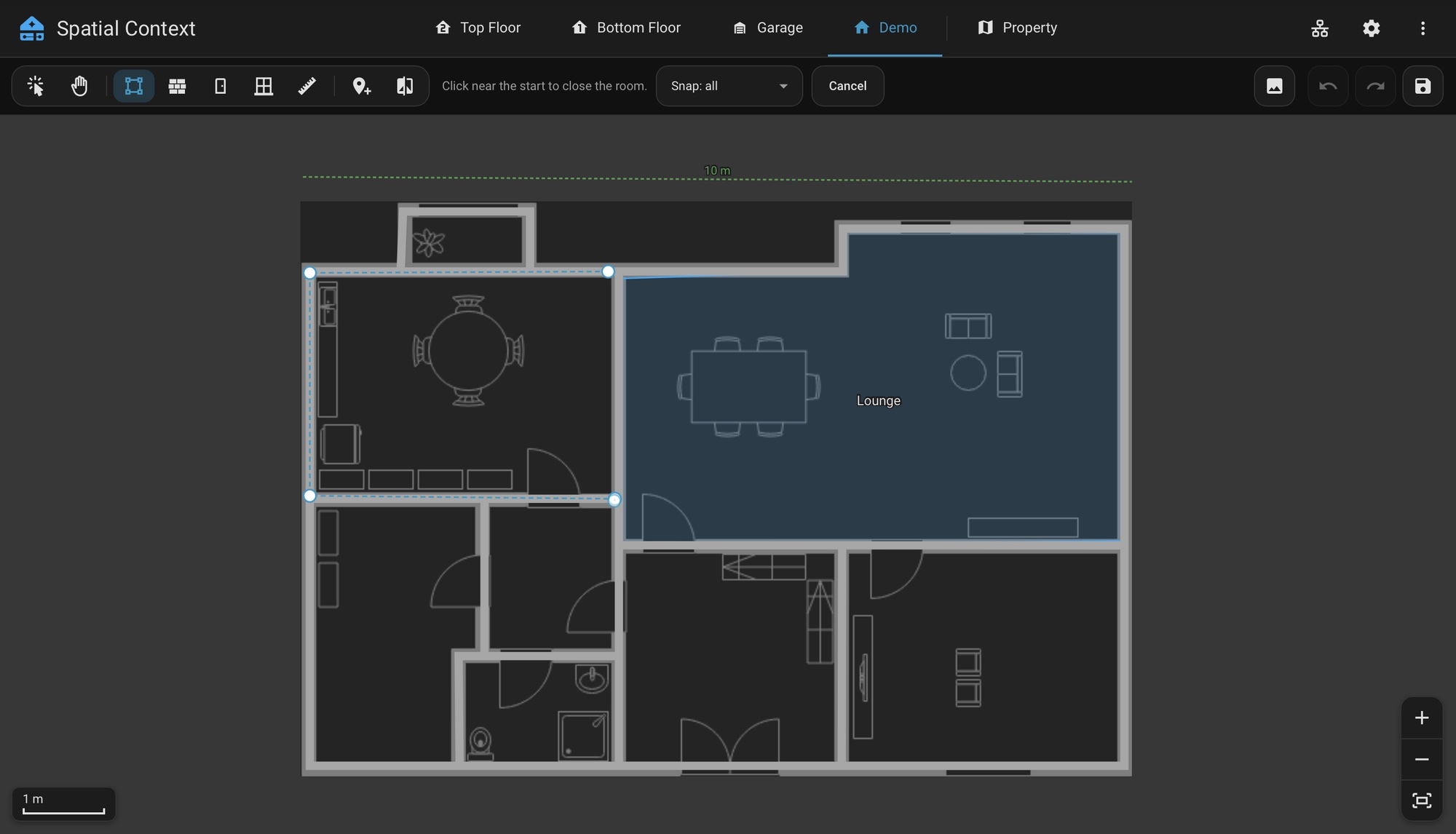
- Select Trace Room, click each corner, then click near the start to close the outline.
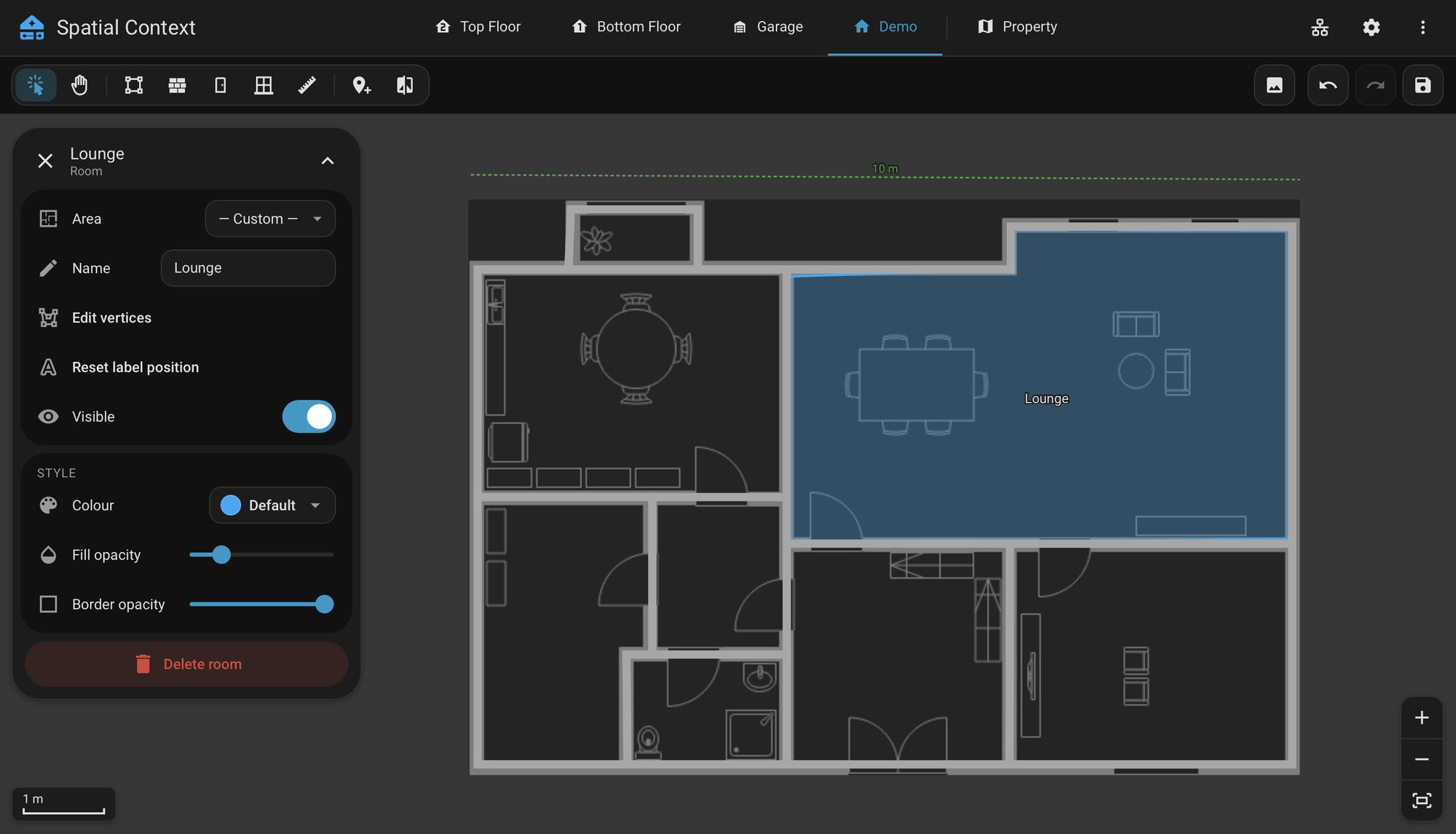
- Select the room and set its name and Home Assistant area.
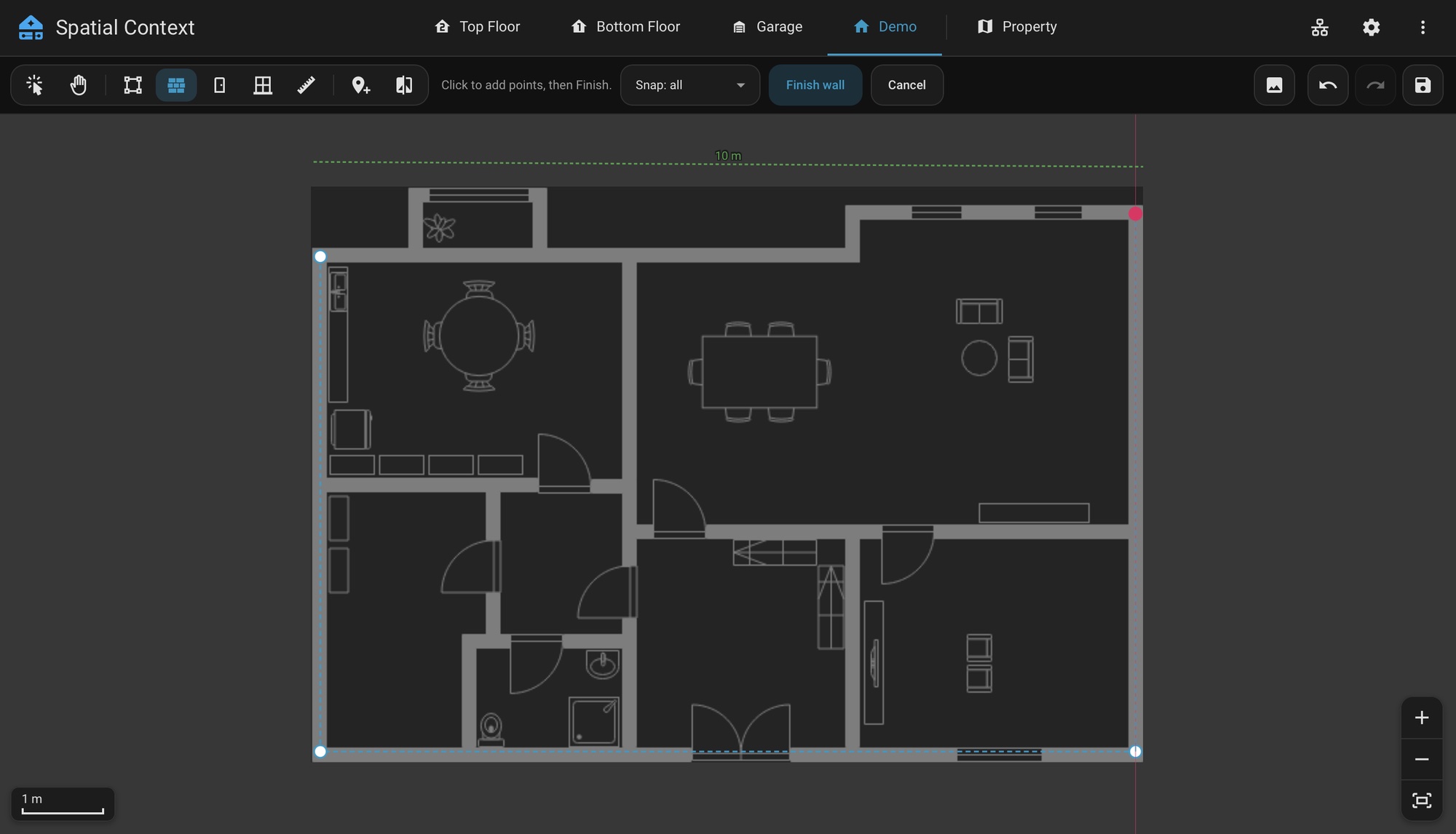
- Select Trace Wall and click along each wall. Select Finish Wall or press Enter to end the run.
- Select each wall and set its material and thickness.
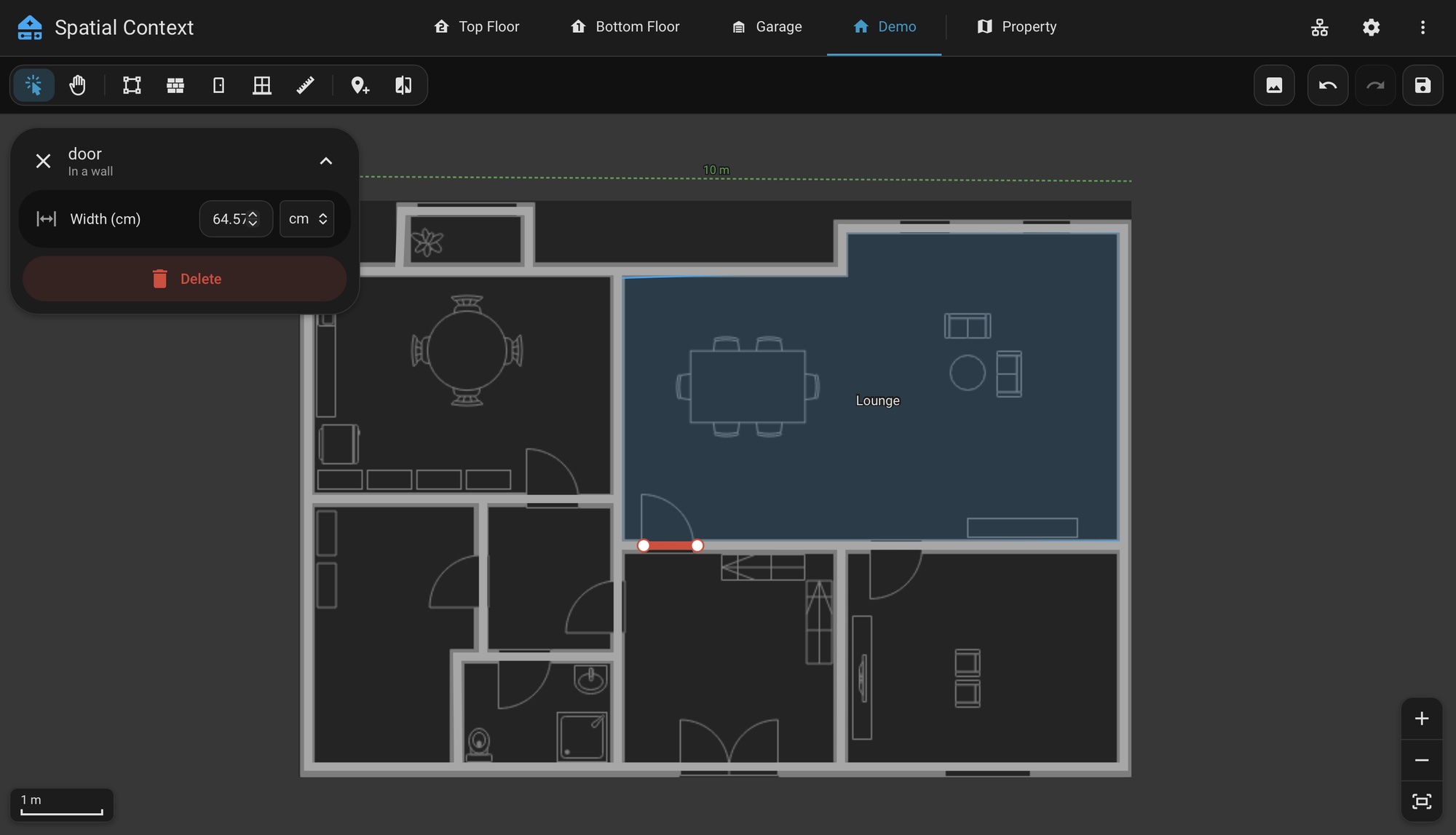
- Select Add Door or Add Window and click a traced wall.
The panel helps as you draw:
- A hint in the controls row says what the next click does.
- A new point snaps onto nearby walls and room edges, so shapes meet cleanly. The Snap menu limits this to walls only or rooms only, or turns it off. Hold Shift to place one point without snapping.
- A point lines up horizontally or vertically with the one before it, and with the first point when you close a shape. A guide line shows when it has locked on.
- Backspace removes the last point, and Esc cancels the trace.
See Using the Panel for every tool and shortcut.
4. Place a Device
- Select Place Device.
- Select a device in the picker, then click the plan.
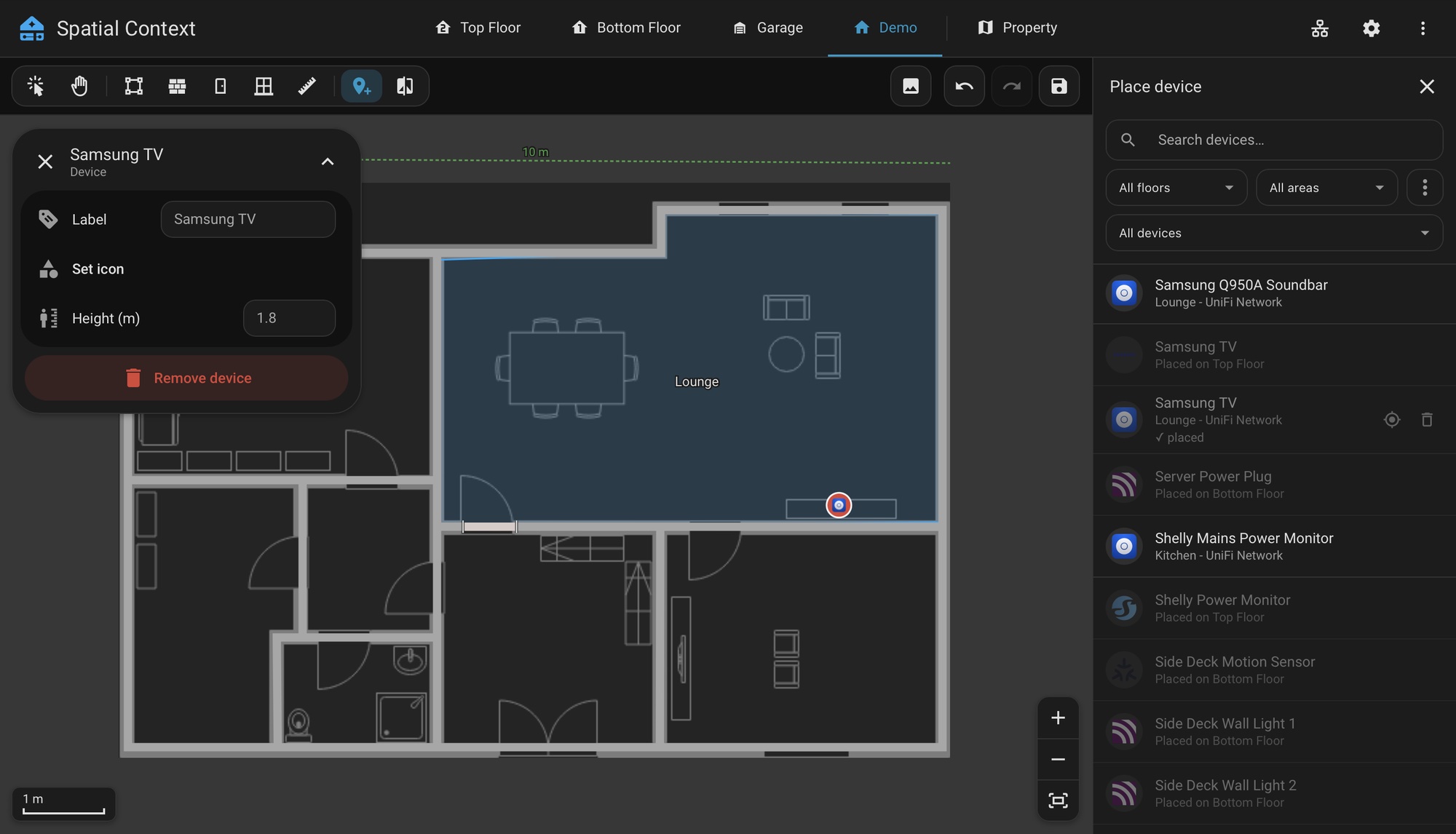
See Placing Devices.
5. Repeat for Other Floors
Repeat the steps for each floor. Floors that sit directly above one another are put in one coordinate system with Align Floors. Links between floors depend on it.
Place buildings and outdoor devices on the Property tab. See The Property Tab.
Changes save a few seconds after each edit when Auto-Save Changes is on.